

Automatically get notified when Sonny Angel restocks at Pop Stop
Instead of refreshing Sonny Angel product pages every day, set up a page-change monitor to alert you when the relevant purchase section changes. This 2026 guide shows you how to track a specific series at Pop Stop without assuming the store has a built-in restock notification service.
- For sonny angel restock nz searches, monitor the exact series page rather than broad search results.
- Pop Stop lists Sonny Angel Snack Series and Flower Gift Series blind boxes; track each separately.
- Use a page-change alert as a prompt to check the product page, not as a reservation.
- Test notification delivery before relying on your Sonny Angel monitoring workflow.
Why this matters
A page-change alert and a confirmed restock are different things. A monitor detects a webpage change; you still need to open the product page and check what changed before deciding to buy.
Pop Stop is best for NZ Sonny Angel collectors who want to browse named blind-box series alongside other pop culture collectables. For this workflow, start with the Dreams Sonny Angel Snack Series Blind Box Single, rather than a search for the word Angel.
That distinction matters: Angel also appears in Lilo & Stitch, Sanrio and other collectable names. Monitoring a broad results page creates distractions instead of a useful series-specific alert.
Before you start
- Choose your exact series. Keep its product page open and confirm the title. Start with 1 product page so you can check the setup before expanding it.
- Prepare your monitoring service and notification destination. Choose an independent page-change service that supports a selected page region, notifications and a test or preview. Check its permissions before connecting anything.
- Check the page-rendering gotcha. A monitor must see the same purchase section you see in your browser. If its preview shows a loading screen, consent overlay or error, fix that before saving the monitor.
This is a tool-independent workflow, not an integration with the store's inventory system. Field names vary between monitoring services, so the steps describe the settings you need rather than inventing button labels.
For your 2026 setup, use a service you can preview and test. Do not give a monitoring service your store password or payment details just to watch a public product page.
Product-page selection
- Open the exact Sonny Angel product page you want to follow.
- Read the full title, including the series and pack description. A single blind box is not the same purchase as a complete collection.
- Copy that product page's address into your monitoring service's page-address field.
- Give the monitor a clear name containing Sonny Angel and the series name.
- Load the service's preview and compare its product heading with the page in your browser.
Expected result: the preview shows the intended product, not search results, an unrelated Angel figure or a general shop page.
Keep your first monitor narrow. The purpose is to answer whether that specific page needs your attention, not to report every change across the shop.
If you are choosing between series, record that choice before configuring notifications. A technically correct monitor on the wrong product is still the wrong workflow.
Change detection and alert delivery
- Select the smallest page region that contains the purchase controls and their nearby explanatory text. Exclude unrelated recommendations, rotating banners and review sections.
- Inspect the captured region. Keep enough context to understand a change; a tiny rectangle containing only an icon is difficult to interpret.
- Choose change-based detection for that region. Use a text condition only when you have copied the exact wording from the live page and understand what the condition matches.
- Choose a checking interval supported by the service. Follow its usage limits and any applicable website restrictions; do not configure aggressive repeated requests.
- Add your notification destination and complete any verification the service requires.
- Send 1 test notification, then confirm that it reaches the device or inbox you actually check.
- Save the monitor and review its initial capture before leaving it running.
Expected result: you have a saved page capture and a working notification route. You have not confirmed a future restock or reserved a product.
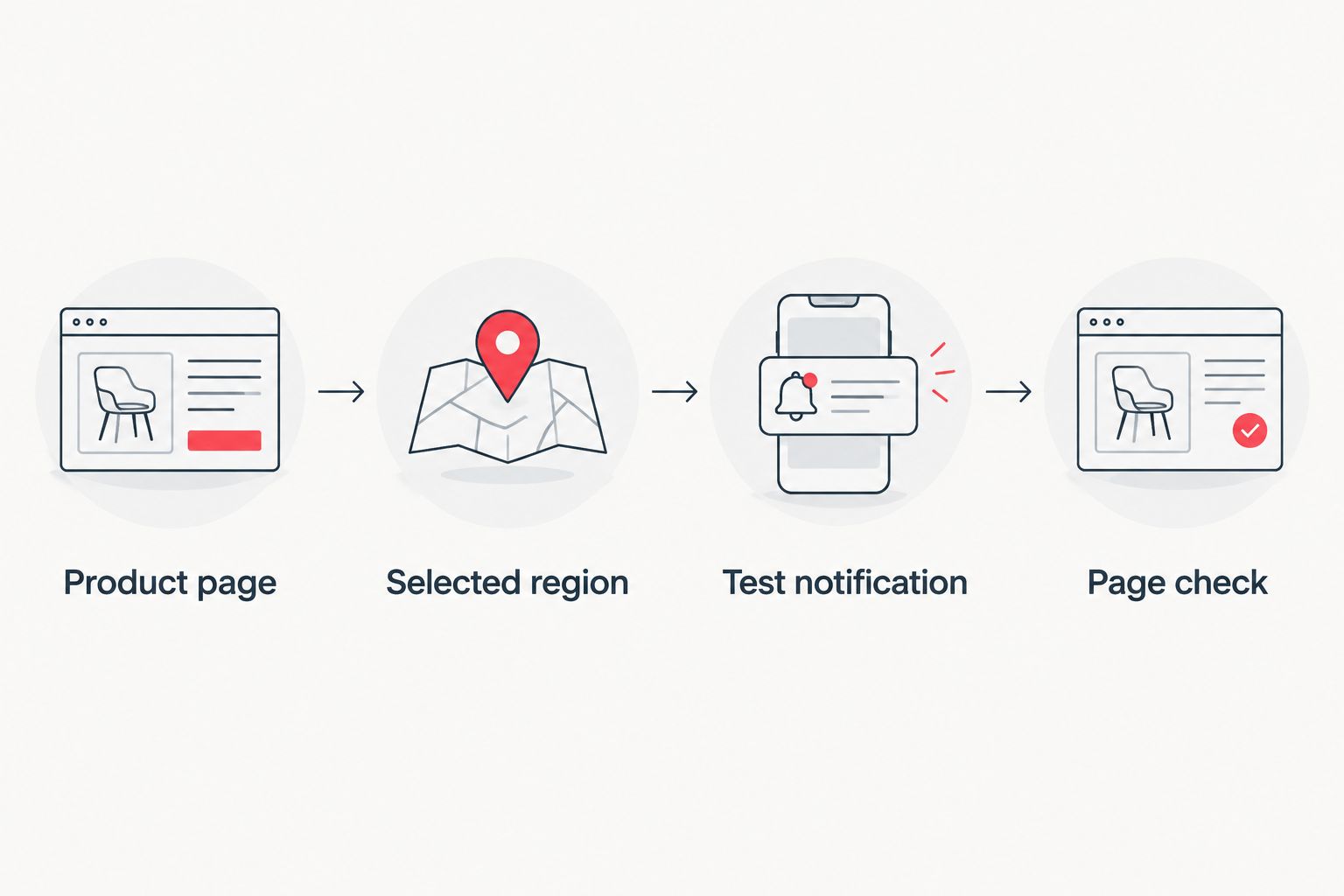
Your setup checklist
- Product page: the heading matches the series you want.
- Selected region: the preview includes the purchase section without unrelated content.
- Test notification: the message reaches your chosen destination.
- Page check: you can open the original product page from your saved setup.
For a 2026 monitoring log, record the series name, notification destination and last successful test date. This gives you something concrete to check if alerts stop arriving.
Second workflow: track another Sonny Angel series
To follow Flower Gift as well, create a separate monitor for the Dreams Sonny Angel Flower Gift Series Blind Box Single. Do not replace the address in your working Snack Series monitor unless you intend to stop tracking it.
- Create a new monitor using the second product page.
- Name it with the Flower Gift series title.
- Select its purchase section independently; do not assume both pages have identical layouts.
- Test the second notification and check that its message identifies the correct series.
Expected result: 2 monitors distinguish 2 series, so you know which page triggered the message.
Which monitoring scope fits you?
| Monitoring scope | Best for | Advantage | Limitation |
|---|---|---|---|
| Selected purchase section | Collectors following a specific series | Excludes unrelated page changes | Needs adjustment if the layout changes |
| Whole product page | Collectors checking broader product updates | Captures changes beyond purchase controls | Unrelated edits also trigger alerts |
Use the selected purchase section for your primary restock-checking workflow. Whole-page monitoring is a fallback when the service cannot reliably capture the relevant region, not a more precise signal.
Troubleshooting
The monitor sends alerts for unrelated changes
Open the before-and-after comparison and identify the changed element. Tighten the selected region if banners or recommendations caused the alert; do not disable all notifications to silence one noisy monitor.
The preview does not match your browser
Check for consent overlays, rendering errors or a failed page load. If the service supports rendered-page capture, test that setting. Stop relying on the monitor if it cannot capture the purchase section correctly.
The test message never arrives
Check the destination address, verification status and spam folder. For browser notifications, check both browser and device permissions, then repeat the delivery test before treating the workflow as complete.
An alert arrives but the expected change is absent
Compare the monitor's saved capture with the live page. An unrelated edit, a temporary page state or a later change can explain the mismatch. A page-change notification is evidence of a detected change, not a promise about the next page visit.
Alerts stop after the page layout changes
Open the monitor preview and reselect the purchase section. Save a fresh baseline and repeat the notification test. Include this check when reviewing your 2026 collection watchlist.
Customise your workflow
Keep one alert destination you check consistently, and include the series name in each monitor title. Separate must-have series from casual interests so every message does not demand the same attention.
After an alert, open the original Pop Stop product page and verify the title and purchase details. Avoid treating a screenshot, forwarded message or old capture as the final source for your decision.
Remove monitors for series you no longer want. A short, relevant watchlist is easier to maintain than a growing pile of alerts you have learned to ignore.
FAQ
What's the best way to set up a Sonny Angel restock NZ alert?
Monitor the selected purchase section of the exact Sonny Angel series page and test notification delivery. Open the live product page after every alert to verify the change.
Does Pop Stop have a built-in Sonny Angel restock notification button?
This guide does not establish a built-in Sonny Angel notification feature at Pop Stop. The workflow uses an independent page-change monitor instead.
Can I track Snack Series and Flower Gift Series together?
You can track both series with separate product-page monitors. Give each monitor a series-specific name so its notification identifies the right page.
Does a Sonny Angel page-change alert reserve a blind box?
No, a page-change alert does not reserve a blind box. It tells you to check the product page; it does not complete a purchase.
Why am I getting alerts about unrelated Angel collectables?
A broad search or results-page monitor can include unrelated products with Angel in their names. Replace it with the exact Sonny Angel series page and narrow the selected region.
How often should I check my alert setup in 2026?
Check your setup whenever a preview changes, delivery fails or an alert becomes irrelevant. Keep the last successful test date in your monitoring log rather than assuming a saved monitor still works.
One last thing
The most useful test is whether an alert tells you exactly what to check. Before leaving your 2026 workflow running, read the test message on your phone: can you identify the series and reach the original page without searching again? If not, improve the monitor name and destination now.

