

Automatically get notified when your Pop Stop pre-order ships
Instead of manually searching your inbox for a Pop Stop pre-order shipping update, set up a Gmail filter and phone notifications so matching order emails are easier to catch. This 2026 guide organises messages you receive; it does not create dispatch updates or confirm that a parcel has shipped.
- For a Pop Stop pre order shipping update, filter existing order emails before configuring phone notifications.
- Gmail sender filters suit multiple orders; order-number filters keep one purchase separate.
- A shipping email and a courier tracking event are different signals; read the actual status.
- Test your notification settings before relying on them for a pre-order dispatch alert.
Why this matters
A pre-order confirmation records your purchase, not its dispatch. An inbox alert tells you a message arrived; only that message's contents tell you whether anything has changed.
Pop Stop is best suited to New Zealand pop culture collectables buyers who want an online and retail store. For your own purchase, start with the confirmation associated with Pop Stop, rather than guessing a sender address from the store name.
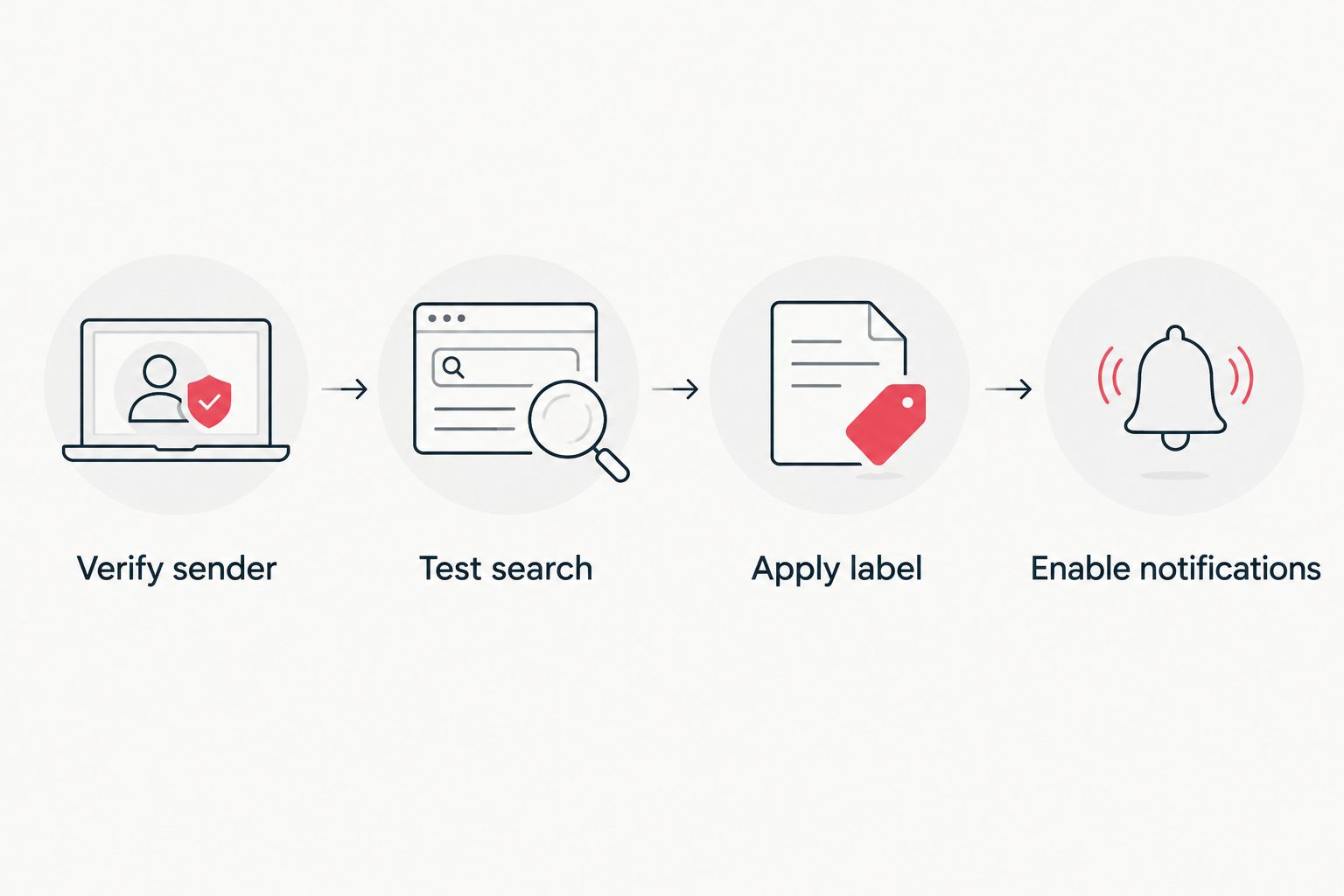
The useful 2026 workflow is straightforward: identify genuine order messages, give them a dedicated label, and make sure your phone can notify you. Keep the original messages accessible so you can check exactly what each update says.
Before you start
- Access: Use the Gmail account that received your confirmation, desktop Gmail for filter setup, and the Gmail app on your phone.
- Materials: Have your original confirmation and order number ready. Record the actual sender address rather than inventing one.
- The gotcha: A sender filter only matches the addresses you specify. A later shipping message using a different sender will not match automatically; an order-number filter also fails when that number is absent.
These instructions use Gmail's desktop labels for filters. Phone notification controls differ between Android and iPhone, so follow the relevant branch rather than expecting identical menus.
Order email identification
Choose your filter scope
Start with the narrowest filter that reliably finds the messages you need. For a 2026 pre-order, an old confirmation is useful for identifying the sender, but it is not proof of a current shipping event.
| Filter option | Best for | Advantage | Limitation |
|---|---|---|---|
| Sender filter | Following several orders | Groups messages from the chosen address | Can include unrelated messages and miss another sending address |
| Order-number filter | Following one purchase | Separates a specific order from other purchases | Misses messages that omit or format the number differently |
Use a sender filter first if you have only a confirmation to work from. Review its matches before adding stricter conditions. Combining a sender and an order number makes the filter narrower, not more reliable by default.
Identify a genuine message
- Open your original order confirmation in Gmail.
- Expand the sender details and read the full email address. Do not rely on the display name alone.
- Find your order number in the message and compare it with your purchase records.
- Search Gmail using that sender address, then search separately using the order number. Inspect what each search returns.
Expected result: You know which address sent the confirmation and whether your order number appears consistently in the messages already received.
A familiar display name does not establish authenticity. If a message asks for unexpected payment or account details, verify the request through independently accessed store information before responding.
Gmail filter configuration
Create a dedicated label
- In desktop Gmail, select Show search options at the right of the search box.
- Enter the verified sender address in From. For an order-specific filter, use Has the words for the order number instead, then inspect the results carefully.
- Select Search and check that the results contain relevant order messages.
- Reopen Show search options, then select Create filter.
- Tick Apply the label, choose New label…, and name it
Pre-order updates 2026. - Leave Skip the Inbox (Archive it) unticked. Select Create filter to save.
Expected result: Future messages matching the filter receive your dedicated label and remain in the inbox unless another rule changes that behaviour.
Do not select an automatic deletion action. Avoid Never send it to Spam as a shortcut: improving visibility should not mean removing a useful safety check.
The filter's job is organisation. It cannot request a shipping email, change the delivery address, or tell the store to dispatch your collectables.
Check existing matches
- Open the label you created and inspect its messages.
- If the label is empty, repeat the search before changing anything else.
- In Settings, select See all settings, then Filters and Blocked Addresses to inspect or edit the saved rule.
Expected result: Your filter conditions match the search you intended. Existing messages receive the label only if you applied the filter to matching conversations during setup or labelled them separately.
Phone notification configuration
A Gmail label does not automatically produce a phone alert. Both Gmail's settings and your phone's notification permissions need attention.
Android notifications
- Open Gmail, then Menu, Settings, and the account receiving your order messages.
- Open Notifications and select All if you want alerts beyond messages classified as high priority.
- Under Manage labels, select your pre-order label. Configure Sync messages before checking Label notifications.
- Check Gmail's notification permissions in Android's app settings. Confirm that your current Do Not Disturb settings do not silence the alert you expect.
Expected result: Gmail is configured to notify you about matching messages, subject to Android's notification and background controls.
iPhone notifications
- Open Gmail, then Menu, Settings, and Email notifications.
- Select All new emails for the relevant account if your aim is to avoid priority-only filtering.
- In iPhone Settings, open Notifications, select Gmail, and check Allow Notifications.
- Review Focus settings if notifications arrive silently or remain hidden.
Expected result: New email can trigger Gmail notifications. This is a broader account-level approach, not a promise of Android-style label-specific alerts.
For a practical 2026 check, send 1 test email from another account to verify basic notification delivery. That tests the phone settings, not the store sender filter; check those 2 layers separately.
Add alerts when tracking changes
The adjacent workflow starts after you receive a genuine tracking reference. An email filter watches messages; carrier tracking describes events associated with the parcel.
- Read the shipping message and identify the carrier and tracking reference.
- Open the carrier's tracking service independently and enter that reference.
- If the carrier offers delivery notifications for that shipment, follow its displayed subscription instructions.
- Keep the order number and tracking reference together, but label them separately.
Expected result: Where offered, carrier alerts follow the parcel's tracking events rather than just incoming store emails.
Do not assume a reference means the carrier has physically received the parcel. Read the stated event. For the related app-based route, use the guide to connecting orders to the Shop app for tracking, and verify that your order can actually be added.
Troubleshooting
- The email arrived but has no label: Compare its full sender address with From in your filter. Check whether an order-number condition excluded it.
- The label appears but your phone stays silent: Check Gmail notifications, operating-system permissions, and Focus or Do Not Disturb. On Android, check label syncing too.
- Only promotional messages match: Narrow the rule using wording found in genuine order messages. Test the search before saving the change.
- There is no shipping message: Search the entire mailbox, including spam and deleted messages. If you still need clarification, ask about the specific order rather than treating silence as a dispatch status.
For an enquiry, prepare 3 reference fields: order number, item name, and the date of the latest relevant message. Never post private order details publicly.
Customise your workflow
Keep one label for all pre-orders if you want a simple overview. Use separate order-specific labels when several purchases need distinct follow-up, accepting that stricter filters require more checking.
For your 2026 setup, choose one main notification route before adding another. Email plus carrier alerts can be useful, but duplicate notifications do not provide independent proof of dispatch.
Keep the message archive; silence unnecessary alerts instead. That preserves the purchase history without turning every update into an interruption.
FAQ
How do I get a Pop Stop pre order shipping update automatically?
Configure notifications for the email account receiving your order messages, then create a tested Gmail filter to organise them. This alerts you to messages received; it does not generate a shipping update.
Does an order confirmation mean my pre-order has shipped?
No. An order confirmation records the purchase, while a dispatch message or tracking event addresses shipment progress. Read the actual status rather than relying on the subject line.
Can Gmail notify me only about one pre-order?
A Gmail filter can organise messages containing a specific order number. Phone alert controls differ by platform, and the filter misses messages that do not contain the matching number.
Why did my shipping email miss the Gmail label?
The message did not match the saved filter conditions. Compare the full sender address and order-number wording, then test an updated search before editing the filter.
Should I enable email alerts or carrier alerts?
Use email alerts to notice incoming order correspondence and carrier alerts, where offered, to follow tracking events. They cover different stages and do not replace each other.
Will a test email prove my shipping filter works?
No. A test email from another account checks basic notification delivery, not a filter restricted to the store's sender. Verify the filter separately against genuine messages.
What should I include when asking about my pre-order?
Include your order number, item name, and the date of the latest relevant message. Ask for clarification of the current order status without sharing payment credentials.
One last thing
Name the alert after the order, not the hoped-for outcome. A label called Pre-order updates 2026 stays accurate when a message contains a question or correction rather than a dispatch notice. Your Pop Stop pop culture collectables order deserves a clear record, not a notification that implies more than the message says.

