

Funko Pop Blast App NZ: Full Setup Workflow 2026
Scanning every new Funko Pop into a spreadsheet after a Pop Stop haul wastes an evening you could spend displaying the figures instead. Set up the Funko Pop Blast app to scan and log each box the moment it lands, and your collection stays current without a keyboard in sight.
- The funko pop blast app nz workflow replaces manual spreadsheets with a camera scan of the box barcode.
- Scan the sticker on the base of the box, not the front artwork, or the match fails.
- Build an in-app wishlist against Pop Stop's Pop! Vinyl range to stop duplicate orders.
- Log pre-orders manually the day Pop Stop confirms shipping, then rescan once the box lands.
- Figures without an official Funko barcode, including bootleg copies, will not register in the app.
Why this matters
A shelf of Pop! Vinyl figures looks complete until you're standing on Pop Stop's site wondering if you already own that Star Wars Ewok two-pack from last year. Memory is unreliable once a collection passes thirty or forty pieces, and duplicate orders on exclusives are expensive mistakes.
Most collectors default to a phone photo folder or a spreadsheet that goes stale the day it's created. A synced app fixes that at the point of unboxing, not three weeks later when you've forgotten half of what shipped.
2026 has brought a steady run of US-exclusive two-packs and blacklight variants through Pop Stop, which makes tracking harder, not easier, if you're relying on memory alone.
Before you start
- A phone with a working camera, iOS or Android, with the Funko Pop Blast app installed from the App Store or Google Play.
- A Funko account, or the guest option, signed in before your first scan session.
- The gotcha: the app reads the barcode sticker on the base of the box, not the front artwork. Hold the box flat under the camera so the sticker fills the frame, or the scan will fail repeatedly and you'll waste ten minutes thinking your phone is broken.
Set up your Funko Pop Blast account
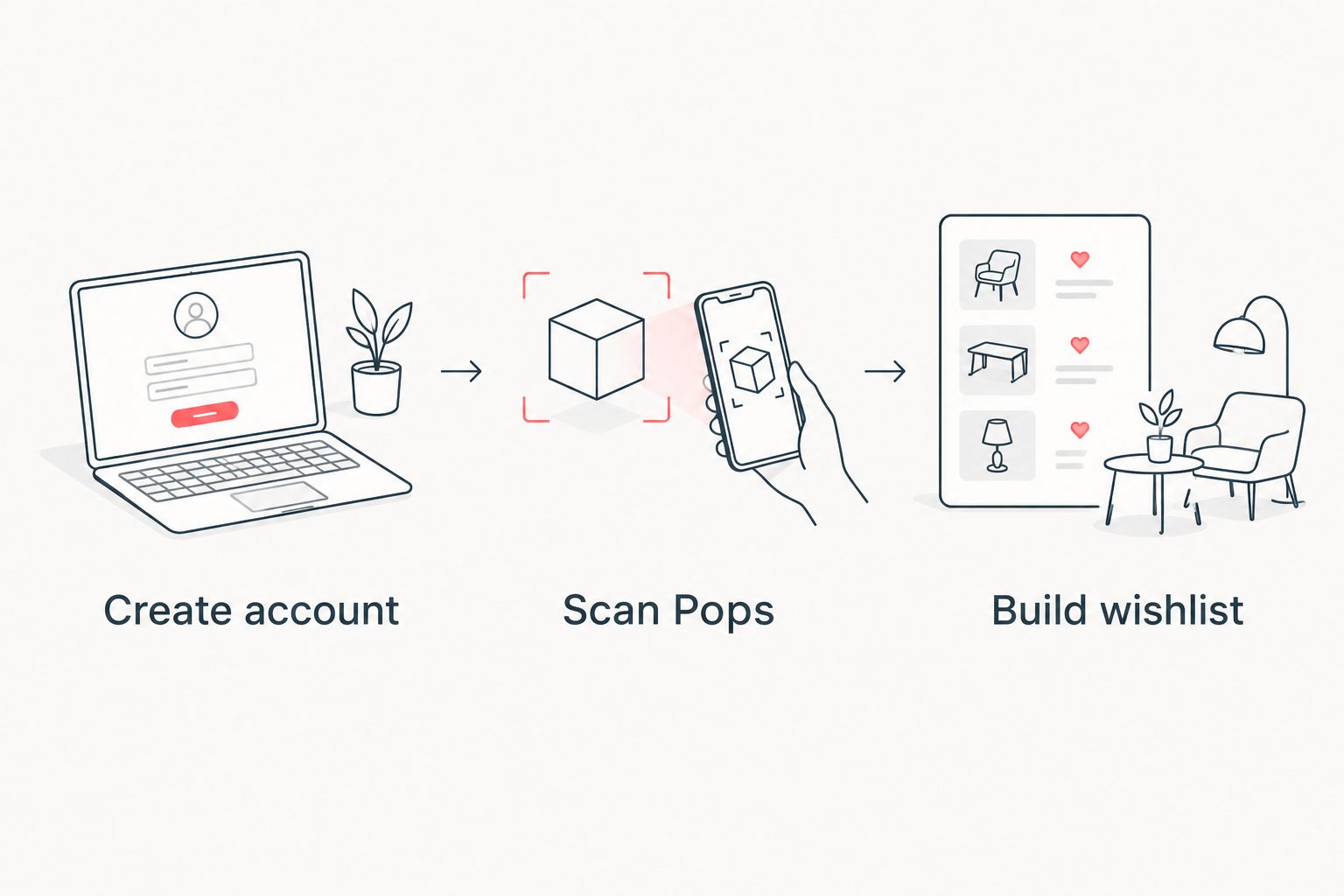
- Open the app and tap Sign Up, or choose Continue as Guest if you just want a quick trial.
- Enter an email address, set a password, then confirm through the verification prompt.
- Grant camera permission when the app asks — this is what powers the scan feature and nothing works without it.
Expected result: the home screen shows an empty My Collection shelf, ready for your first scan.
Scan your Pop Stop purchases into the app
- Unbox your new figure and find the barcode sticker on the base of the window box.
- Tap the Scan icon on the main screen.
- Hold the phone steady over the barcode until the app confirms a match and drops the figure into My Collection.
- Repeat for every box in the same order you're unpacking them — once you've got the angle right, a full haul takes a few minutes, not an hour.
Expected result: each figure appears in your collection feed tagged with its name and series.
Build your wishlist against Pop Stop's catalog
- Browse the current range on Pop Stop and note the pieces you actually want — a best Funko Pops to collect in NZ list is a faster starting point than scrolling the full catalog cold.
- In the app, search the figure by name and tap the Add to Wish List heart icon.
- Cross-check the wishlist against Pop Stop's listing before you order — this is the single step that stops duplicate buys on exclusives.
Expected result: the wishlist shows only figures you don't already own in My Collection, so you never re-order something sitting in a box on your shelf.
Log pre-orders and new arrivals the same way
A pre-order doesn't have a barcode to scan yet, so the workflow splits in two for anything ordered ahead of stock.
- Search the figure by name inside the app and add it manually to My Collection as soon as Pop Stop confirms the order.
- Mark it in the app's notes field, if available, so it's obvious the entry is a pre-order and not a physical piece on your shelf.
- When the box actually arrives, scan the real barcode. The app will either merge the entry or create a duplicate you need to delete — check this every time.
This two-step habit matters more in 2026 than it used to, with more exclusives shipping on staggered pre-order windows through the year.


Troubleshooting
- Barcode won't scan: glare off glossy window box packaging is the usual cause. Tilt the box slightly out of direct light and try again.
- App logs the wrong variant: correct the series or edition manually in the item's detail screen rather than deleting and rescanning.
- Duplicate entries after a pre-order lands: merge or delete the manual entry once the scanned barcode creates the real one.
- App won't open the camera: check camera permission in your phone's settings first — this fixes most crash-on-scan reports.
- Wishlist item won't clear after purchase: remove it manually from the wishlist; the app doesn't always detect a purchase automatically.
Customize your workflow
Once scanning is routine, expand it. Pair the app habit with Pop Stop's funko pops for first-time collectors guide if you're building a collection from zero rather than just tidying an existing one.
If you're already tracking rewards points alongside your collection, the connect Pop Stop Rewards workflow runs on the same logic: log at purchase, not from memory later.
FAQ
What does the Funko Pop Blast app do?
It scans the barcode on a Funko Pop box and logs the figure into a digital collection, so you can track what you own without a spreadsheet.
Is the funko pop blast app nz compatible?
Yes, the app runs on standard iOS and Android devices available in New Zealand through the App Store and Google Play.
Do I need an account to use it?
No, a guest mode exists for casual use, but creating an account keeps your collection saved if you change phones.
Why won't my Funko Pop scan into the app?
The camera needs a clear view of the barcode sticker on the base of the box, not the front artwork. Glare and a tilted angle are the most common causes of a failed scan.
Can the app track blind box figures?
Yes, once unboxed, a blind box figure with an official Funko barcode scans the same way as any other Pop! Vinyl.
Does the app work with pre-orders from Pop Stop?
Add pre-orders manually by searching the figure name, then scan the real barcode once the box arrives to avoid a duplicate entry.
Will a bootleg Funko Pop scan into the app?
No, the app matches against official Funko barcodes, so counterfeit figures without a genuine sticker won't register.
How is this different from a spreadsheet?
A spreadsheet requires manual entry after the fact; the app logs the figure at the point of unboxing with a single scan.
One last thing
The barcode check is the detail most collectors skip: the app only registers official Funko stickers, which means it doubles as a rough authenticity check on anything you're not sure about. If a figure won't scan and the barcode looks slightly off compared to others in the same series, that's worth a second look before it goes on the shelf.

